Have you ever imagined being able to manage your diabetes better and measure your glucose without those annoying finger pricks?
Now this is no longer just a dream, but a reality for millions of patients thanks to FreeStyle LibreLink.
When it comes to managing diabetes, having an ally on this challenging journey can make all the difference.
In this guide, we’ll explore how FreeStyle LibreLink, an advanced glucose monitoring system, is not only a vital tool for managing the condition, but also a practical and convenient way to enjoy a better quality of life.
It’s important to mention that, before using any type of device or app, it is recommended that you consult your doctor.
Advertisement
Dive into this complete guide with me and discover how this innovative tool can become your partner in diabetes management. Let’s get started!
How FreeStyleLibreLink works
FreeStyle LibreLink is a digital tool that simplifies glucose level monitoring for patients with diabetes.
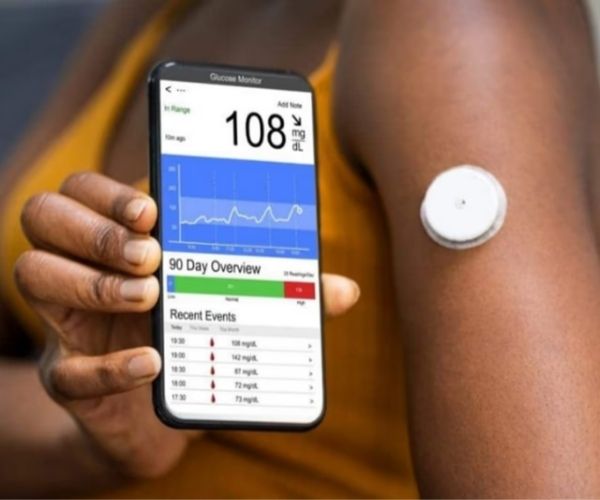
For the app to work, the person must place a sensor on the arm called FreeStyle Livre.
Once the app is installed on the phone, the user can scan the sensor to get real-time readings, eliminating the need for constant finger pricks.
The app also allows you to record data, identify trends, and share reports with doctors or family members, making diabetes management more practical and efficient.
Advertisement
It’s worth noting that the sensor lasts only 14 days attached to the arm. After that period, it must be replaced.
How to download and install
To download and install the app, follow the steps below:
- Open your phone’s app store (Google Play or App Store).
- Type the name of the app into the search bar.
- Check your device’s compatibility with FreeStyle LibreLink. Keep in mind that some devices do not have the features or sensors required for the app to work.
- Check the system requirements and app compatibility in your phone’s app store.
- After checking compatibility, click “Download” (for iOS) or “Install” (for Android) to start the download and installation process.
- Wait a few seconds while the download completes.
- Ready! The app is now available on your phone.
Set up the app on your phone
As soon as the download is complete, open FreeStyle LibreLink on your mobile device.
On first access, you will be asked to log in or create a new account.
Follow the instructions that appear on the screen below to set up the app.
Apply the sensor to your arm
To attach the FreeStyle Libre sensor, the first step is to clean the area of the arm where it will be placed.
The sensor package comes with a sterilized alcohol wipe so the user can easily clean the area.
After completing the procedure, you should follow the manufacturer’s instructions to apply the sensor to your arm.
The application is quite simple and quick, and once attached, the sensor does not cause pain.
Here are some recommendations on where to apply the sensor:
- Choose an area of skin (healthy and hair-free) on the back of your arm that
- always remains flat (without folds).
- Preferably, choose a place where there is no risk of the sensor getting caught.
- Avoid areas with scars, moles, stretch marks, swelling, or tattoos.
Set up the sensor in the app
Once the sensor has been applied to the arm, it must be set up in the app. To do this, follow these steps:
- Open FreeStyle LibreLink and point your smartphone at the newly applied sensor, then scan the sensor.
- After applying the sensor, you must wait 60 minutes. Your smartphone will provide the countdown.
- After 60 minutes, you will receive a notification in FreeStyle LibreLink informing you that the sensor is ready to be scanned.
How to monitor glucose using FreeStyle LibreLink
The FreeStyle Libre sensor continuously measures glucose levels, and scanning takes only 1 second. It can record data from the last 8 hours.
To take a reading wherever and whenever you want, open the app and click the “Scan Sensor” or “Sensor Reading” option (depending on the app version).
Then, bring your phone close to the sensor and keep your device at a distance of 1 to 4 centimeters.
The app will read the sensor and display the results in real time on your smartphone screen.
After scanning, wait a few seconds for the app to display the glucose results.
If you want, you can record additional information, such as notes about food, exercise, or other variables that may affect your glucose levels.
Important: To make scanning easier and more efficient, make sure your phone’s near-field communication (NFC) antenna is positioned directly over the sensor during scanning.
An iPhone’s NFC antenna is located at the top. An Android phone’s NFC antenna is usually located on the back.
Remove bulky or metal phone cases, as they may interfere with the NFC signal.
Set alarms
FreeStyle LibreLink allows you to set alarms so the user is alerted when glucose levels are outside the defined limits.
These alarms can be customized according to your doctor’s recommendations. Follow these steps to set up the alarms:
- Open the app.
- Click “Alarms“.
- Tap “Set alerts“.
- Select the types of alerts you want to receive.
- Set alert values.
- Finally, click “Save“.
Share data with your doctor
To share data with your doctor, family members, or other healthcare professionals, you can use the “Share” feature. To do this, follow the steps below:
- Open FreeStyle LibreLink.
- Tap the “Share” tab.
- Click “Create a link“.
- Enter the email address or phone number of the person you want to share your data with.
- Click “Send“.
It is also possible to share data using the “LibreView” feature.
It is an online portal that allows healthcare professionals or doctors to view patients’ glucose data.
Frequently asked questions: FreeStyle LibreLink
1. What should I do if my smartphone is not compatible with FreeStyleLibreLink?
If your device is not compatible, consider using an alternative device that meets the app’s requirements. Check the options available in your device’s app store.
2. How long does a FreeStyle Libre sensor last and how do I replace it?
Generally, FreeStyle Libre sensors last about 14 days. After this period, they must be replaced with a new sensor.
3. Can I set alarms with FreeStyle LibreLink?
Yes, the app allows you to set alarms to alert you when glucose levels are outside the defined limits. You can customize these alarms according to your doctor’s recommendations.
4. Can I share my data with healthcare professionals or family members?
Yes, the app offers the option to share your glucose data with healthcare professionals, family members, or caregivers for additional support.