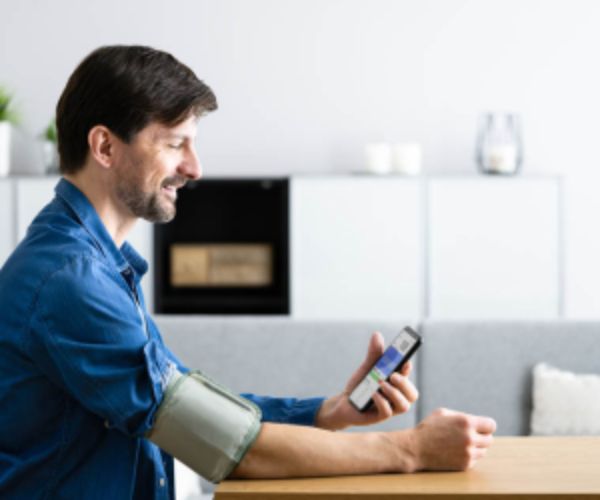
Have you ever imagined what it would be like to have a constant ally by your side on the journey to control diabetes?
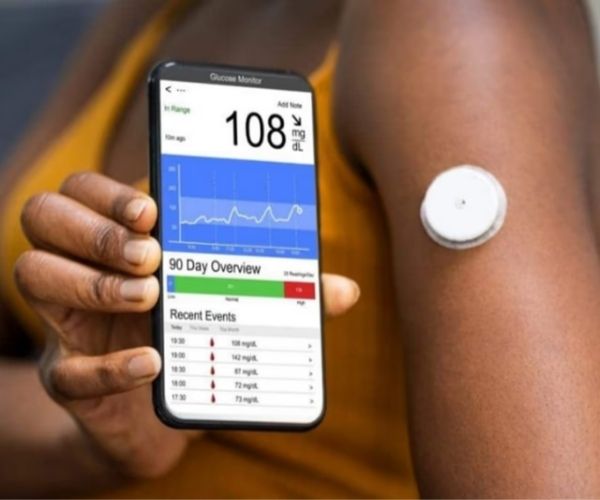
How about discovering a digital tool that closely monitors your glucose levels, records your food intake, and even offers personalized support and guidance?
That is exactly what SocialDiabetes offers its users.
Millions of people around the world are already transforming the way they manage their health thanks to this innovative app.
People with diabetes and even caregivers know that diabetes is a challenging condition that requires constant attention and informed decisions, and thanks to advances in technology, it has never been so easy to stay in control of this disease.
Advertisement
In this article, we will explore the SocialDiabetes app in detail.
It includes advanced monitoring features, data analysis tools, and much more.
The platform is certainly changing the lives of people living with diabetes, allowing them to regain control of their health and achieve a better quality of life.
It is worth noting that, before using any type of device or app, it is recommended that you consult your doctor.
So, if you are looking for a smarter and more effective way to manage diabetes or know someone who needs help, keep reading and follow this complete review we have prepared for you.
Advertisement
How to download the SocialDiabetes app
To download it to your device, follow the steps below:
- Open your phone’s app store (Google Play or App Store).
- Type “SocialDiabetes” in the search bar and click the magnifying glass.
- Once the search result appears, click the app icon.
- Then tap the “Install” button (Android) or “Download” (iOS).
- Wait a few seconds while the download is completed.
- Done! SocialDiabetes is now available on your phone.
First access
After installing the app on your mobile device, open it for the first time.
It is worth mentioning that the main goal of this free app is to help the user achieve their diabetes-related goals.
To do this, on first access, the platform initially asks a series of questions to personalize the tool according to the person’s specific needs.
Therefore, you need to answer simple questions such as: “Do you take medication for diabetes?” or “Do you inject insulin?”.
After answering the questions, you need to sign up, which can be done by creating an account or using your Google account.
Once the procedure is completed, you will be taken to the home screen, where you will find all the available sections.
Recording diabetes-related information
After downloading SocialDiabetes and completing the first access, it is time to get started!
In general, the app has an intuitive, user-friendly, and very easy-to-use interface.
This makes access much easier, even for those who do not have much experience.
As you can see, on the home screen, at the bottom, are the four sections available in the app: My diary, Charts, Exercise, and Blog.
To start recording your glucose readings and other important diabetes-related information, click “+” at the bottom of the screen.
Here you can record your glucose, food, insulin, medication, activity, among others.
Choose the information you want to record from the list by clicking on it.
For example, if you choose glucose, the field to record the reading will appear on the screen, and you can also include other data. After recording it, click “Save”.
Keep in mind that, even though the date and time appear automatically above, they can be changed if you want to record readings from previous days.
Therefore, whenever you want to record new readings or other data, just follow the same procedure mentioned above.
Viewing charts in SocialDiabetes
Keeping a frequent record of glucose measurements, insulin injections or other medications, food intake, physical activity, and mood is very important for diabetes management.
Glucose readings show how your diabetes is doing and are influenced by your daily self-care choices.
For example, recording injections and foods helps you understand how medications affect glucose and how foods influence the glycemic response, taking into account the amount, type of food, nutrient balance, and preparation method.
All of this can be observed and analyzed in the charts available in the app. To access them, click the “Charts” section on the home screen.
Activating alarms
The app allows you to activate an alarm if you think your glucose is too high or too low.
With the alarm activated, you can check your glucose again after a few minutes.
The app will automatically set an alarm if your glucose levels are out of range.
To activate the alarm, in the section where you record your glucose reading (+), you have the “Reminder” (bell) option next to the time.
Click it and choose how many minutes you want before the alarm notifies you.
Setting up exercise
It is worth highlighting that exercise is essential in diabetes management. Therefore, using the app, you can set an exercise schedule and even your daily step goal.
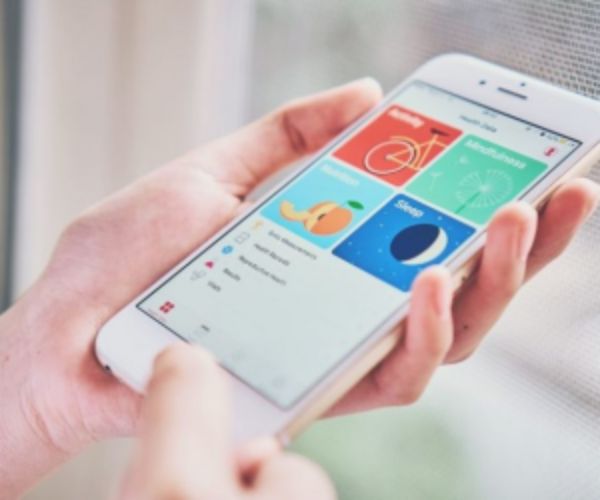
If you want to use this feature, you must configure it so you can view your calorie count in the app, in addition to linking SocialDiabetes to your health app (Google Fit or Apple Health).
To do this, go to the “Exercise” section and follow the instructions that appear on the screen.
How to share reports
The platform itself allows you to generate reports with all the data you have recorded in the app, making it possible to see your statistics gathered together, summarized, and displayed in charts.
If you want to share your data with your doctor or other people, go to the main menu and select “My reports”.
Then choose the report period and format and click “Export”. After generating the document you need, you can view it, save it, or send it.
Integrating my meter with SocialDiabetes
SocialDiabetes connects to a wide variety of glucose meters.
Each one has its own pairing procedure. However, here are some common steps that can be followed to connect glucose meters to the app:
- Turn on Bluetooth on your phone.
- Turn on Bluetooth on your glucose meter
- Open the SocialDiabetes app.
- In the left-side vertical menu (three lines), select “Connect your device”.
- Choose your glucose meter model from the list.
- Press “link” and wait a few seconds.
- If a code is requested during the linking process, check your glucose meter screen and enter the code on your phone.
- Done! Your meter is now integrated with SocialDiabetes.
Conclusion
As you can see, SocialDiabetes is a complete and easy-to-use app that offers valuable features to help people with diabetes better manage their health condition.
Now that you know this smart tool better, have a powerful ally in your hands and make a difference in diabetes management.