PDF here, PDF there, it’s everywhere!
We can’t deny that this format, created more than 20 years ago, is now more relevant than ever.
However, on some occasions, it can present certain limitations.
Therefore, we often have to choose to convert the format to another one, depending on our needs, especially when it comes to images.
Advertisement
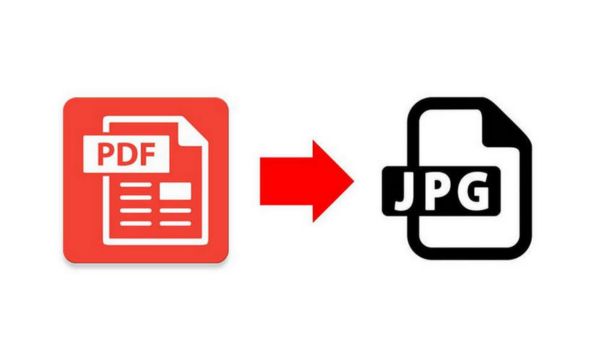
In this sense, it is much more practical to convert PDF to JPG.
Of course, without a doubt, PDF has become a very versatile way of presenting and sharing information in document format.
In addition, this acronym is widely used nowadays, but I’m sure few people know its meaning, which is Portable Document Format.
On the other hand, we have the famous JPG format (or JPEG, as it is also called), which is the best format for those who want to send digital images.
It emerged in 1983 and, since then, has become one of the most widely used standards on the internet.
JPG is the abbreviation for Joint Photographic Experts Group. Thanks to it, we can take and store photos in small files.
Advertisement
If you made it this far, it’s because you definitely need your PDF in photo format, but at the same time don’t want to sacrifice image quality.
The good news is that you really don’t have to—you just need to convert the PDF to JPG.
And to help you with that, I prepared a complete guide with step-by-step instructions.
Keep reading and see how simple and quick it is to carry out the conversion while maintaining, of course, the quality!
Why convert PDF to JPG?
That’s a great question, and there are several reasons why you might want to do it.
The main one is that converting PDF to JPG will make sharing the file much easier.
Sharing files in PDF format can be inconvenient due to their relatively large size.
Not to mention that if you need to print high-resolution artwork, there is undoubtedly no better option than the JPG format.
In addition, if you only need to extract an image from within a PDF document, this action is not allowed by simply clicking and saving, as we normally do in other formats.
Convert PDF to JPG: step-by-step instructions
There are several tools and platforms that easily convert PDF to JPG in seconds, such as… Soda PDF, LightPDF, Smallpdf, iLovePDF, Adobe Acrobat, among others.
However, in the step-by-step guide below, I will show you how to do this specifically using Adobe Acrobat since it is widely used software.
Check out the steps:
- Download Adobe Acrobat Reader to your computer.
- Open the PDF file you want to convert in Acrobat.
- To export to a new file format, go to the right-hand panel and select the “Export PDF” tool.
- You can also perform the procedure by going to the menu and selecting “File” > “Export to” > “Image”.
- Next, choose the image file format type, in this case, JPG.
- Click “Export”.
- Then, in the “Save As” dialog box, save the file. Select the storage location and, if you wish, you can rename the file.
- Finally, click “Save”.
Why convert JPG to PDF?
PDF generally has higher quality than JPG, making it an excellent alternative for storing your JPG files.
When converting from JPG to PDF, your image does not lose quality, which is one of the biggest concerns for most people when carrying out this action.
In addition, converting JPG to PDF can help you protect the original content of your file.
This way, there is no risk of other people editing your document.
Convert JPG to PDF
Just as it is possible to convert a PDF file to JPG, any image in JPG format can be converted to PDF instantly.
This way, you will have a file in a versatile format that can be accessed on different devices, such as cell phones, tablets, and computers.
For this, you can use Adobe Acrobat Reader again.
Best practices for PDF and JPG conversions
If you want to achieve better results, there are some best practices that will help ensure that the conversion from one format to another happens as expected and that the result is to your liking. Check out some tips:
For PDF conversion
- Choose the right tool;
- Check the quality of the original PDF;
- Adjust conversion settings;
- Use high-quality PDFs.
For JPG conversion
- Choose the appropriate resolution;
- Use image editing software;
- Check the compression settings;
- Keep the original backup copies;
- Test the result;
Troubleshooting common conversion issues
When converting a JPG file to PDF format, some issues may arise during the process.
Check out the solutions for the most common issues:
Blank or missing pages
Solution: If this happened, check whether the original PDF contains blank or missing pages. If it does, you will need to edit the original PDF before converting it.
The file size is too large.
Solution: If the JPG file size is too large, you will need to reduce the image resolution during conversion. This way, your file size will decrease.
Low image quality
If the quality of the JPG image generated in the conversion is not satisfactory, check whether the conversion software allows you to adjust the quality settings. You can increase the resolution or image quality in the settings.
See also:
Protecting your PDF files
One of the great advantages that the PDF format offers users is file protection, limiting access through password settings and restrictive features such as printing and editing.
This way, other users who do not have the access password will not be able to change your file, leaving read-only permission.
Frequently asked questions: common questions about converting files to PDF and JPG
Can I convert multiple pages of a PDF into JPG images at the same time?
Yes, it is possible to convert multiple pages of a PDF into JPG images at the same time using batch conversion software or online services that offer this functionality.
How can I preserve text when converting PDF to JPG?
To preserve the text during PDF conversion to JPG, you should choose the optical character recognition (OCR) option when performing the conversion.
This allows the text to be extracted and included in the JPG image.
How do I choose the appropriate resolution for JPG conversion?
The appropriate resolution for JPG conversion depends on the purpose of the image.
For web viewing, a resolution of 72 to 96 DPI may be sufficient.
For printing, higher resolutions such as 300 DPI are recommended to ensure quality.