Learn all about the Picsart app: photo editor! Discover the benefits that Picsart has to offer.
If you’re the type of person who loves taking photos and editing them to get a different result and stand out on social media, you probably already know a number of apps that promise incredible things.
We picked one of users’ favorites, and we have lots of tips about it: its name is Picsart.
At first, the online form has a full name: PicsArt Photo Studio: Collage Maker and Editor.
Advertisement
You can find it in the app store with some variations in the name.
If you don’t want to download it to your phone, you can use it with a range of free tools in its web version, available for your computer or tablet, at picsart.com.
But if you prefer the version available for your phone, follow the tips below!
Considered one of the best photo editing apps, PicsArt has some features that require a subscription — as part of PicsArt Gold — and can be purchased for a year or a month.
And if you don’t want to choose the premium version, there are plenty of cool things you can do for free.
How to use the Picsart app on your photos?
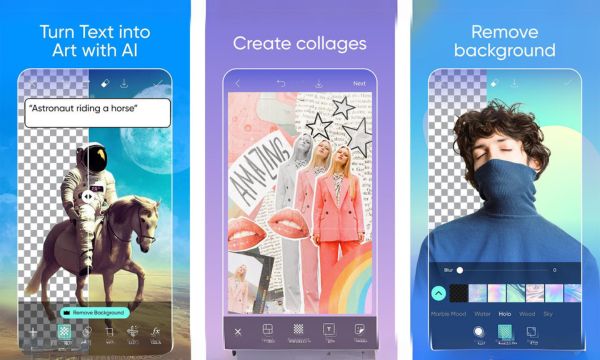
- Step 1: to start using the app, once installed you’ll need to sign up, or even log in with your Google account or Facebook account.
- Step 2: right on the app’s home page, you’ll find a variety of templates with creations made by users and by the app itself. You can recreate the edits from these models in a simple and quick way just by clicking the “replay” button.
- Step 3: simply select the photo you want to edit from your gallery.
- Step 4: PicsArt will teach you how to make these edits step by step.
- Step 5: in addition, you can add some more detailed edits, adding effects, opacity, inverting position, among other functions.
- Step 6: besides all these steps, there are a number of effects that can be added to your photo and, finally, when you finish editing, just click “save.”
In addition to this little “tour” of the app, we’ve also selected some effects that are widely used by users, and we’re going to teach you those too!
Remember that all effects that have a gold crown next to them belong to the paid PicsArt Gold features, okay?
Advertisement
Dispersion Effect
You know that effect that makes it look like the object or person is breaking apart, as if the pixels were flying through the photo? Well, that can be done through the Scatter Effect:
- Click the “+” button;
- Choose the “Photo” mode;
- Choose a photo from your gallery;
- Tap Tools and then Dispersion;
- Select the area where you want to apply the effect;
- Tap ( ✔️) to confirm the action and the top arrow to finish.
Add stickers
In this category, creativity is the key. You need to be patient to find cool and beautiful stickers, and we even recommend saving your favorites under “mine” or finding them again whenever you need them in “recents.”
- Click the “+” button;
- Choose the “Photo” mode;
- Choose a photo from your gallery;
- Tap Sticker and search for one;
- I recommend spirals or trending hashtags;
- Apply it over the photo, resize it, and apply others if you want;
- Tap ( ✔️) to confirm the action and the top arrow to finish.
Freehand Line Drawing
In this category you’re completely free, and you can create lines, arrows, outlines on objects, and many other options.
- Click the “+” button;
- Choose the “Photo” mode;
- Choose a photo from your gallery;
- Tap “Brushes”; there are several varieties, and the simple one is the first;
- I chose the second one, dotted. Also choose the color you prefer;
- Tap ( ✔️) to confirm the action and the top arrow to finish.
These options we shared aren’t enough to cover even ⅓ of the tools available in the PicsArt app.
If you’re a photography lover and you always like editing your photos to give them a stronger visual effect, you need to check out this option right now! Compatibility: Android , iPhone (IOS) and Web.